How To Troubleshoot Miracast Connection Issues On Windows
Introduction
Miracast is a useful feature that allows you to share your screen without using cables. It lets you mirror your Windows device to a TV, monitor, or projector. This feature works through wireless display technology. Many people use it for work meetings, school presentations, and home entertainment. It removes the need for HDMI cables and makes setup easier. You can connect quickly and start sharing your screen in seconds.
However, Miracast does not always work as expected. Some users face connection errors. Others see lag, screen freezing, or no display detection at all. These problems can feel frustrating, especially when you need the feature urgently. The good part is that most of these issues are not serious. They usually happen due to small settings, outdated drivers, or weak signals.
You can resolve them easily by following the correct steps. This guide will help you understand how to troubleshoot Miracast connection issues on Windows in a clear and simple way. It explains each step carefully so you can follow without confusion.
Important Checks Before You Begin
Before you start fixing the issue, it is important to check a few basic things. These simple checks can save time. Many users skip these steps and move to complex fixes. That often leads to confusion. If you follow these checks first, you may solve the problem quickly without extra effort.
- Check device compatibility
Check that your Windows device supports Miracast. Also ensure your TV or display is compatible. If either one lacks support, the connection will not work. - Keep devices close
Distance matters for wireless connections. Keep your PC and display in the same room. - Turn on Wi-Fi
Miracast depends on Wi-Fi Direct. Even if you are not using the internet, Wi-Fi must be turned on. If Wi-Fi is off, Miracast will not work. - Disable VPN
VPN services can block wireless connections. They may interfere with Miracast. Turn off VPN before you try to connect. - Check battery level
A low battery can impact performance. Wireless features may not work as expected. Keep your device charged or plugged in. - Restart both devices
Restart your PC and the display device. This can remove temporary errors and is a simple and effective fix. - Close background apps
Too many apps running at the same time can slow your system. This can affect Miracast performance. Close any unnecessary apps. - Update Windows
Always keep your system updated. Updates fix bugs and improve compatibility. An outdated system may cause connection problems.
Quick Answers To Miracast Issues:
What is Miracast in Windows?
Miracast is a wireless display feature built into Windows. It allows you to share your screen with another device. You do not need cables for this connection. It uses Wi-Fi Direct to connect devices directly. This makes screen sharing simple and quick.
Why is Miracast not connecting?
There are many reasons for connection failure. Your device may not support Miracast. Wi-Fi may be turned off. Drivers may be outdated. Network settings may also block the connection. Each of these factors needs to be checked step by step.
Does Miracast need internet?
Miracast does not need an internet connection. It works using a direct wireless link between devices. However, Wi-Fi must be enabled for it to function properly.
Can Windows 10 and 11 use Miracast?
Yes, both Windows 10 and Windows 11 support Miracast. The feature works well if your hardware supports it. You may need to install or enable certain settings before using it.
4 Methods To Troubleshoot Miracast Connection Issues On Windows
If your Miracast connection is not working, do not worry. The issue is often small and easy to resolve. Follow each step in order instead of trying all methods together. Begin with one method and check the result. If it does not help, move to the next. This makes it easier to find the exact cause.
Method 1: Check Miracast Support
The first step is to confirm whether your device supports Miracast. This is very important. If your system does not support it, no fix will work. Many users waste time trying different methods without checking this basic detail.
Windows provides tools to check system information. You can use these tools to confirm Miracast support. This process is simple and takes only a few minutes. It helps you understand if your hardware is compatible.
If your system does not support Miracast, you can still use an external adapter. These adapters allow wireless display even on unsupported devices. This can be a good alternative if needed.
Step 1:
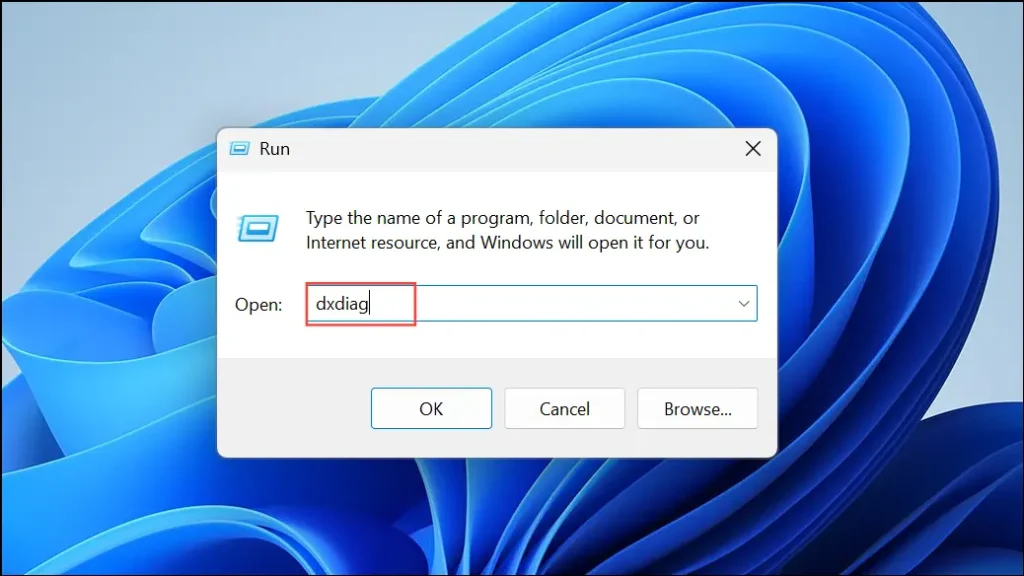
Press Windows + R. Type dxdiag and press Enter. Save the report to your system.
Step 2:
Open the saved file. Look for Miracast details. If it shows available, your device supports it.
Method 2: Update Display and Network Drivers
Drivers are important for smooth system performance. They allow your hardware to work properly with the operating system. If drivers are outdated, features like Miracast may not function correctly.
Display drivers control how your screen behaves, while network drivers handle wireless connections. Both are essential for Miracast to work. If either driver is outdated, you may face connection problems.
Updating drivers is easy. Windows can update them automatically, or you can download the latest versions from the manufacturer’s website. Regular updates help improve performance and fix common issues.
Step 1:
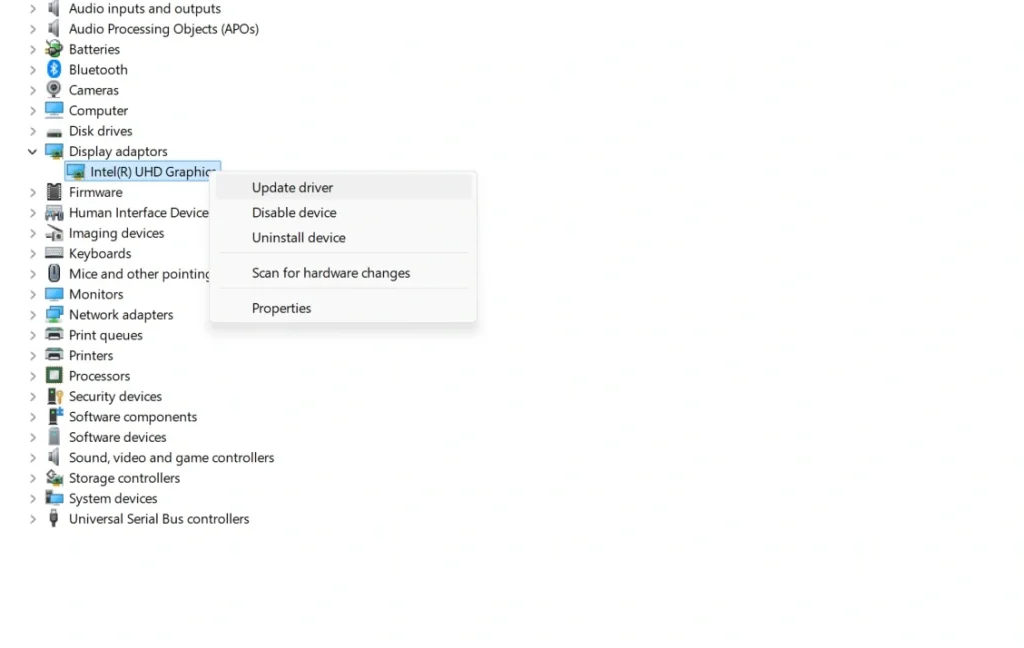
Open Device Manager. Expand Display adapters and Network adapters. Right-click each driver and select Update driver.
Step 2:
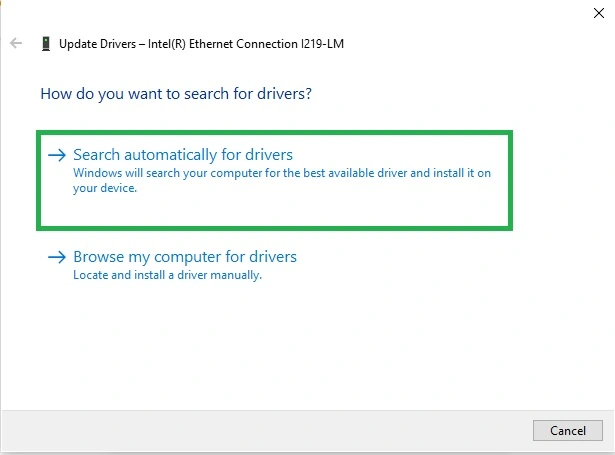
Choose Search automatically for drivers. Wait for updates to complete. Restart your system after that.
Method 3: Enable Wireless Display Feature
Sometimes the wireless display feature is not installed on your system. Without this feature, Miracast will not work. You need to enable it manually.
This feature is part of the optional Windows features. It is not always installed by default. The installation process is quick and simple. Once installed, your system can detect nearby displays.
After enabling the feature, restart your system. This ensures that all changes take effect. Then try connecting again.
Step 1:
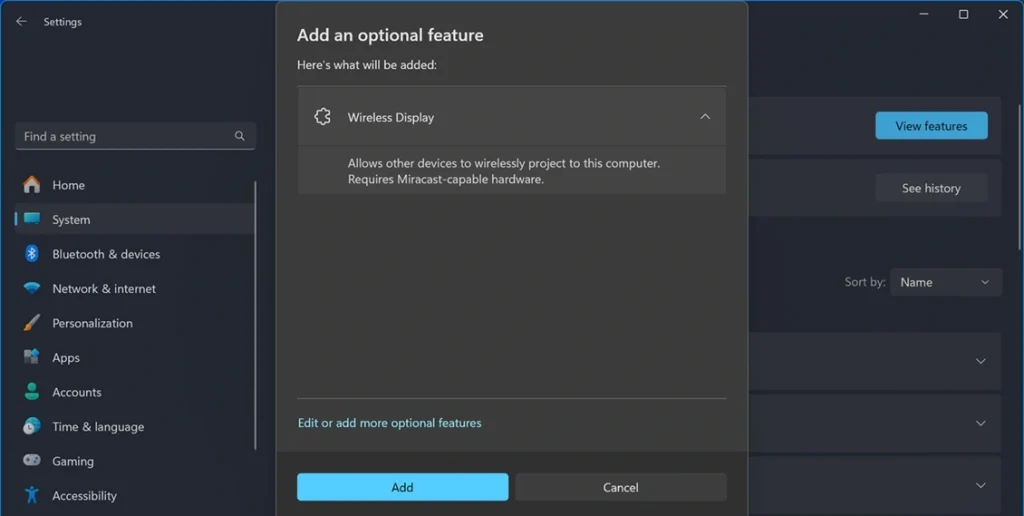
Go to Settings. Open Apps. Click Optional features. Select Add a feature.
Step 2:
Search for Wireless Display. Install it. Restart your PC after installation.
Method 4: Reset Network Settings
Network issues are a common cause of Miracast problems. Sometimes settings become corrupted. This can block the connection. Resetting network settings can fix these hidden issues.
When you reset network settings, your system removes all saved connections. It creates fresh settings. This often solves many wireless problems.
After the reset, you will need to reconnect to your Wi-Fi network. Make sure you have your password ready before you start.
Step 1:
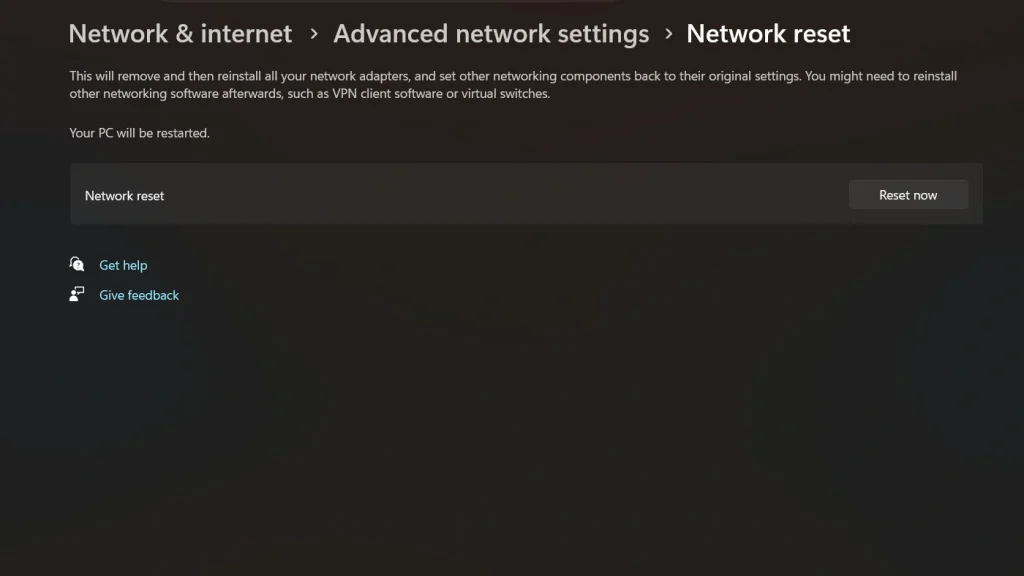
Go to Settings. Open Network & Internet. Click Network reset.
Step 2:
Confirm the reset. Restart your system. Reconnect to Wi-Fi and test Miracast again.
Author’s Tip
Many users try random solutions without understanding the problem. This approach often creates more confusion. It is always better to follow a clear process. Start with simple checks. Then move to advanced steps only if needed. This saves time and reduces stress. If you stay patient and follow each step carefully, you can troubleshoot Miracast connection issues on Windows without difficulty.
Another important tip is to maintain your system regularly. Keep your drivers updated. Remove unnecessary files and apps. Avoid installing unknown software. A clean and updated system works better. It also reduces the chances of connection problems. Good maintenance habits can prevent many issues before they even start.
Conclusion
Miracast is a helpful feature that makes screen sharing easy. It removes the need for cables and allows quick connections. Many users rely on it for daily tasks. However, problems can occur due to small errors or outdated settings.
The good news is that these problems are easy to fix. You only need to follow the right steps in order. Start with basic checks and move to advanced methods if needed. With a clear approach, you can troubleshoot Miracast connection issues on Windows and enjoy smooth screen sharing again.
FAQs:
Why does my screen lag during Miracast?
Screen lag usually occurs when the wireless signal is weak or the system is under heavy load. If your devices are far apart, the connection may become unstable. Too many background apps can also slow down performance. Keep both devices close to each other and reduce interference from other wireless devices. Close unused apps and make sure your system is running smoothly. These small steps can improve stability and reduce lag during screen mirroring.
Can I use Miracast without Bluetooth?
Yes, Bluetooth is not required for Miracast to work. Miracast uses Wi-Fi Direct to create a direct wireless connection between devices. This means you only need Wi-Fi enabled on both devices. Even if you are not connected to the internet, Miracast can still function. Just ensure that wireless settings are active and both devices are discoverable.
What should I do if my TV is not detected?
If your TV is not detected, first confirm that it supports Miracast or screen mirroring. Then, turn on the screen mirroring option in the TV settings. Restart both your Windows device and the TV to clear any temporary issues. Make sure both devices are within range and have Wi-Fi enabled. If the problem continues, try reconnecting after checking for system updates or resetting network settings.
Author Bio:
Dinesh Lakhwani 

Dinesh Lakhwani, the entrepreneurial brain behind “TechCommuters,” achieved big things in the tech world. He started the company to make smart and user-friendly tech solutions. Thanks to his sharp thinking, focus on quality and the motto of never giving up, TechCommuters became a top player in the industry. His commitment to excellence has propelled the company to a leading position in the industry.
Popular Post











Recent Post
System Restore: Complete Guide for Windows 11
Introduction: Your Windows 11 PC can run into problems at any time. A bad update, a new app, or a wrong setting can break things fast. When that happens, you need a quick fix. System Restore is one of the best built-in tools Windows offers for these moments. It helps you roll back your PC […]
Setting Up Default Audio Device: Complete Guide [2026]
Introduction: Sound is a big part of how we use computers every day. Whether you are watching a movie, joining a video call, or listening to music, your audio needs to work properly. Setting up default audio device is one of the first things you should do when you connect new speakers, headphones, or a […]
Emptying the Recycle Bin In Windows: Complete Guide
Introduction: When a file is deleted in Windows, it is not erased immediately. It is first sent to the Recycle Bin, where it stays until it is removed permanently. Clearing the Recycle Bin is a quick way to regain storage space. Many users do this often to keep their system clean and working properly. Knowing […]
How To Close Games Assist: Simple Methods to Try
Introduction Do you have a feature on your device that keeps popping up while you play games? Many users want to know how to close Games Assist because it shows up at the wrong time. It can be distracting. It can slow down your game. And sometimes, you just do not need it running in […]
Optimizing Graphics Performance: Complete Guide [2026]
Introduction: If your games stutter or your videos look choppy, your graphics might need some help. Optimizing graphics performance is one of the best things you can do for your PC. It makes everything look better and run faster without buying new hardware. Many people think better visuals require expensive upgrades. But that is not […]
Updating Printer Drivers: Complete Guide For 2026
Introduction: Your printer may stop responding without warning. You click print, but nothing comes out. In some cases, the output quality also becomes poor. There is no need to worry right away. The solution is often quite simple. Many common printer issues are linked to outdated drivers. Updating printer drivers can quickly restore normal function. […]
Managing Update Delivery Optimization: Latest Guide for Windows
Windows updates are essential. They keep your computer secure and fix bugs. But updates can be large. They can slow down your internet without warning. Videos buffer. Pages load slowly. Most people do not know why this happens. The reason is often updates running quietly in the background. That is where managing update delivery optimization […]
Change Power and Sleep Settings in Windows: Latest Guide
Introduction: Computers power our work, study, and play. Many people use them for hours without thinking about energy use. A few quick tweaks can boost performance and save power. They also help your PC stay fast and efficient. This guide shows how to adjust power and sleep settings in Windows step by step. Power and […]
Resolving App-Specific GPU Problems: Complete Guide (8 Quick Methods)
Introduction: Modern computers rely heavily on the GPU for smooth performance. Well, yes! It helps run games, design software, video editing tools, and many other apps. When the GPU works well, everything feels fast and stable. But when issues appear in a single app, it can become confusing and frustrating. Many users face cases where […]
Resolving Screen Flickering Problems On Windows 11/10: Complete Guide
Introduction Screen flickering is a common issue in both Windows 10 and Windows 11 systems. It may appear as quick flashes, blinking lines, or unstable brightness on the screen. This problem can interrupt your work and make it difficult to focus for long periods. Many users notice this issue after installing updates, changing drivers, or […]

