How to Install Docker on a Mac?
Last updated on January 24th, 2025 at 5:24 pm
Introduction
In Mac and even Windows computers, the Docker Desktop is a native app from Docker for various purposes, like launching, debugging, building, and testing containerized apps.
A wide range of features are available within this app, made to simplify the setup and monitoring processes of the isolated environments where the projects are available. The software ensures that all available dependencies do not conflict with each other, either.
Overall, users can expect many functional benefits from installing Docker for Mac, and the process of that is simple. Let’s discuss how that occurs.
What is Docker Desktop?
The Docker Desktop is a desktop app for Mac and Windows computers that are useful for debugging, creating, and testing containerized apps. Various features are available within the utility for its functions, like fast edit-test cycles, built-in compatibility for enterprise networks, file change alerts, etc.
While some VPNs like Avast SecureLine VPN work well on their own, you can run other VPNs and proxies with the support of this software too. Under this program, users will find different options like Kubernetes, developer tools, the Docker app, and version synchronization.
What is Containerized Apps?
The Containerized applications are cleanly packaged small bundles of software. These apps include multiple software sections that can work together for specific functions, all of them available within these singular self-contained boxes.
These containerized apps work for different user types, like businesses get many apps within these applications, easily operable with one server. This will exert little stress on different hardware in the system. Alternately, app developers can program specific codework for app development, carry them in the containerized apps and later run them in other systems.
From the end users’ perspectives, these apps are useful for storing many files in one app instead of different sections of the hard drive.
System Requirements on Mac Devices for Docker
It is possible to download and install Docker on Mac on devices running with Apple silicon and Intel-based chipsets equally. However, specific system requirements are important to note:
Mac with Intel chipset
Specifications include:
- macOS version 10.15 or newer versions are compatible, like Catalina, Monterey, and Big Sur.
- At least 4 GB of RAM capacity is required.
If your device running with an Intel chip is of an older macOS version, upgrade the system to a recent macOS version before using Docker.
Mac with Apple Silicon chipset
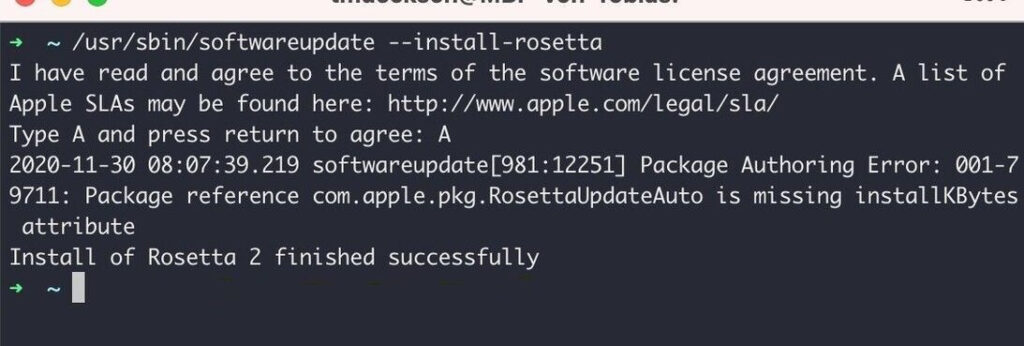
The previous requirement of installing and using Rosetta 2 is not a prerequisite anymore since the launch of Docker Desktop version 4.3.0 and above. However, the software does run some important tools for the optional command line. So, it is better to install Rosetta 2 with the following command:
- softwareupdate –install-rosetta
Ways to Successfully Install Docker on Mac?
In the context of how to install Docker on Mac, there is essentially one simple method to handle the process directly. But, to activate the software or install the new upgrade, users must learn more sequences. Here are the varying processes, discussed in detail.
Method 1: Install Docker Desktop through Mac
The first process of getting and installing Docker for Mac is straightforward and accessible through the Docker official website. Make sure to check for the latest version of the app and then follow the correct steps for downloading.
How to do this?
Step 1: Visit the official website of Docker.
Step 2: Tap the “Install Docker Desktop” option > Install on Mac. Choose the software for your specific chipset and download the latest version of the Docker Desktop app.
Step 3: Access the section in your Mac where files exist after downloading and double-click on the downloaded file.
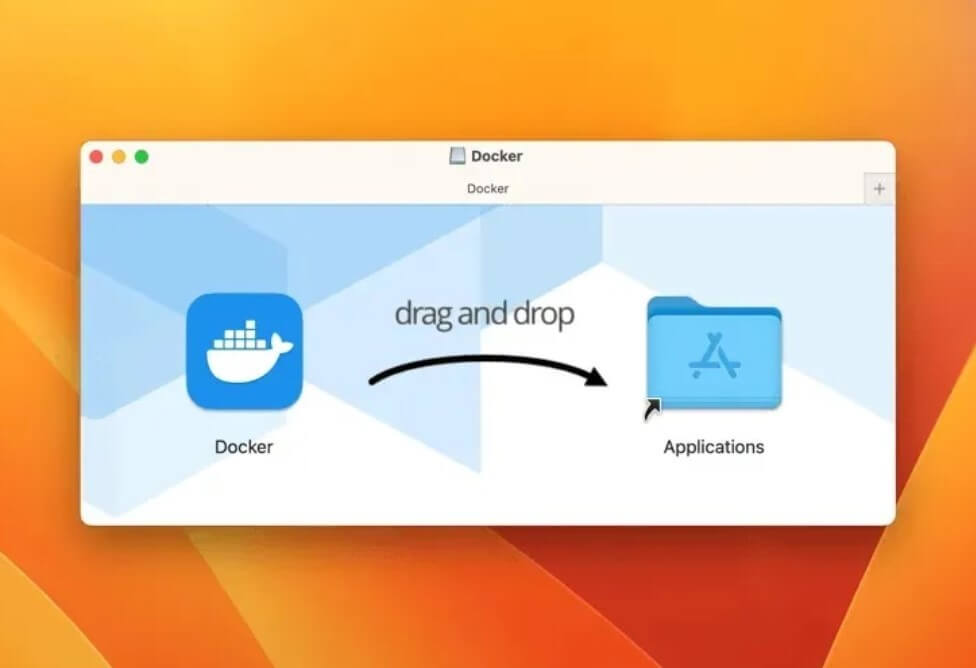
Step 4: Drag and drop the “docker.dmg” file into the Applications folder.
Step 5: Under the Applications folder, open Docker for Mac.
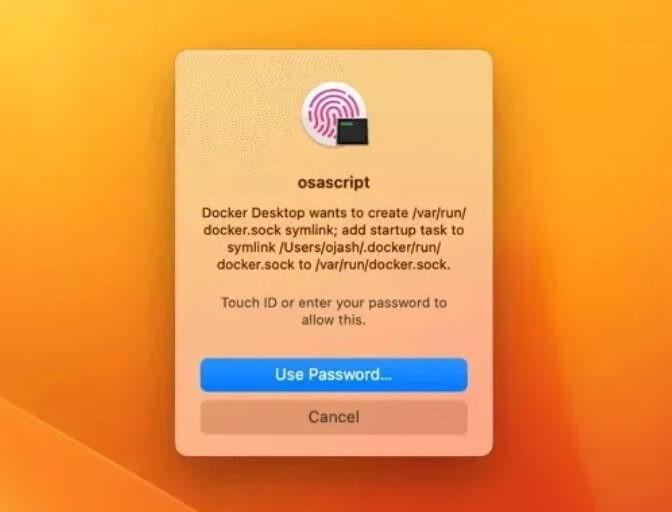
Step 6: When the pop-up prompt comes up, insert the device password to unlock the app.
Step 7: The Docker Desktop app will start automatically configuring the device as needed.
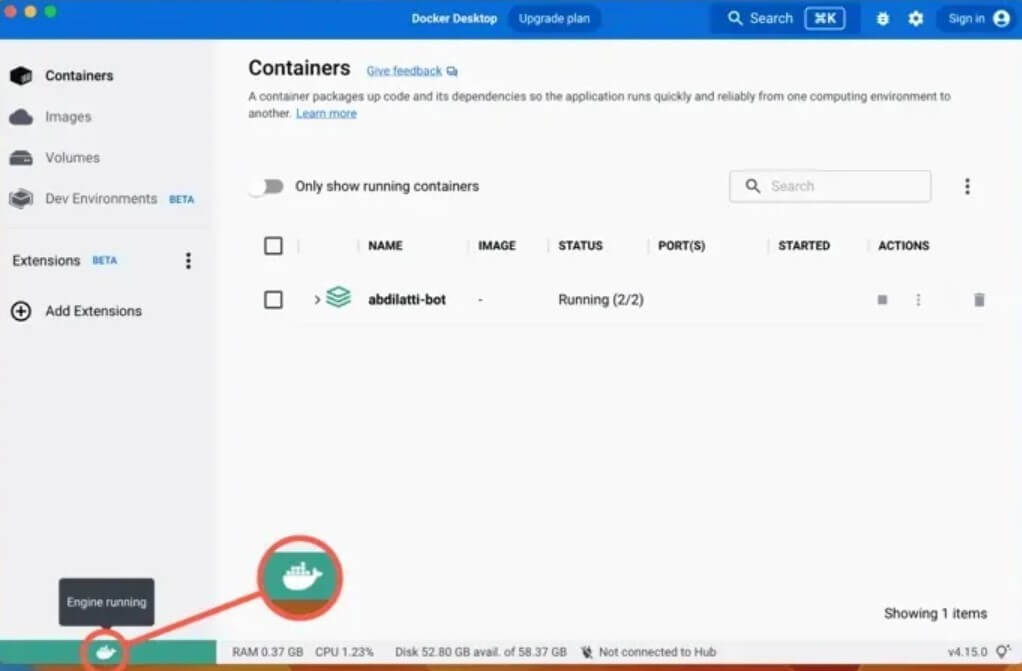
Step 8: Hover the cursor on top of the Docker logo at the bottom-left part of the window. If the “Engine Running” popup appears, it signifies the successful installation process.
Method 2: Verify Docker Desktop on Mac via Terminal
After you install Docker on Mac, it is better to check that the software is running as expected on your device. It is necessary to access the Terminal utility to complete the verification process securely on Mac.
How to do this?
Step 1: On your Mac device, tap the Finder icon and choose Applications > Utilities.
Step 2: Select the Terminal option from the list of apps and access the app.
Step 3: Add the following command and hit the Enter key:
sudo docker –version
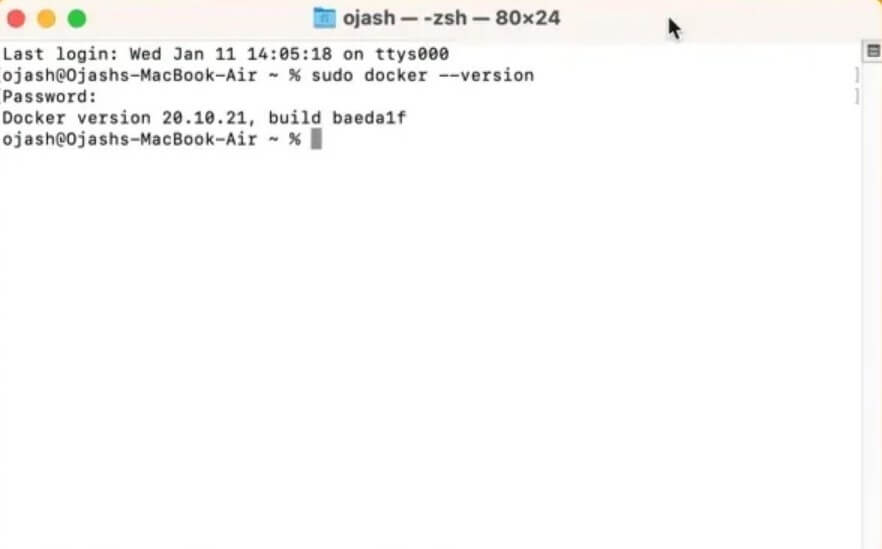
Step 4: Again, add the next command to verify the compose function > Enter:
sudo docker-compose –version
Step 5: Insert the following command for the installation machine version > Enter:
sudo docker-machine –version
Step 6: You can also check the installation status with the following command:
sudo docker run hello-world
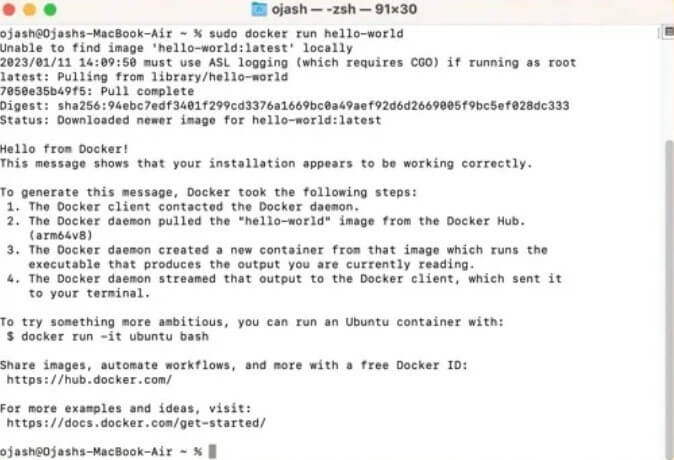
Step 7: If there are no errors, the installation is completed fully.
Method 3: Install via Command Line
It is possible to install Docker on Mac through the command line through the Terminal utility in the Applications folder. This occurs after you complete the Docker.dmg file. This version of accessing the Terminal and using commands to install the software is more complex to handle. So, it is best suited for developers will some technical expertise.
How to do this?
Step 1: Click on Finder > Applications > Utilities > Terminal.
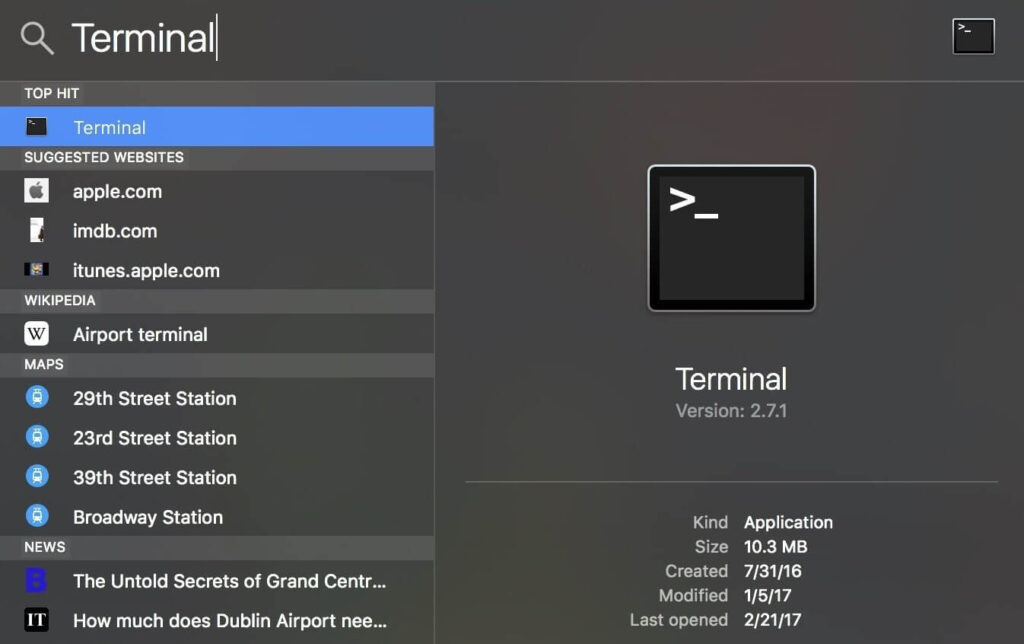
Step 2: Run the next commands one after another and press Enter:
sudo hdiutil attach Docker.dmg
sudo /Volumes/Docker/Docker.app/Contents/MacOS/install
sudo hdiutil detach /Volumes/Docker
Step 3: The macOS system carries out many security checks in the first use of an app. So, the “install” command would not show results instantly.
The “Install” command will accept different flags, like:
–accept-license
–allowed-org=<org name>
–user=<username>
Method 4: How to Install the Docker Desktop Updates on Mac
Docker Desktop does get new updates that users must download and install into their system. When there are newly available updates, the icon for it will appear in the Docker menu. You can access System Preferences > Software Updates to search for any new updates directly.
Adjust the setting to download the software update immediately. Or, tap the Release Notes choice to see the new changes in the updated software available. Users can disable the automatic update checking functionality through Docker Desktop since version 4.3.0.
How to do this?
Step 1: Click on the Docker menu > Download update
to install the latest updates.
Step 2: Click on the Update and Restart option in the next section. The upgrades will start downloading automatically, and the device will reboot after that.
Step 3: Under the Docker Subscription Service Agreement section, read the terms and conditions and tap on Accept.
Conclusion
Indeed, the Docker Desktop is very useful on Mac for building and testing containerized apps for different user types. So, following suitable steps to safely download and install the program is important. The methods mentioned here are detailed and allow for a fast installation process of the software and the new updates later.
Take the time to understand your system specifications and follow the relevant installation commands carefully. In case of complex technical steps, take professional help if needed. Practice all of these methods first.
Author Bio:
Dinesh Lakhwani 

Dinesh Lakhwani, the entrepreneurial brain behind “TechCommuters,” achieved big things in the tech world. He started the company to make smart and user-friendly tech solutions. Thanks to his sharp thinking, focus on quality and the motto of never giving up, TechCommuters became a top player in the industry. His commitment to excellence has propelled the company to a leading position in the industry.
Popular Post











Recent Post
![Help With Color Management In Windows Complete Guide [2026]](https://www.techcommuters.com/wp-content/uploads/2025/12/Help-With-Color-Management-In-Windows-Complete-Guide.webp)
Help With Color Management In Windows: Complete Guide [2026]
Color often decides how we experience a picture, a video, a website, or even a simple chart. Many users feel confused when colors look different on each screen. A monitor may show a softer shade while a laptop shows a sharper one. This creates doubt and slows down work. It can also lead to mistakes […]
How To Install Pending Windows Updates Easily On Windows 11
Windows updates keep your computer healthy. They fix problems and improve security. Many people ignore updates because they worry about errors or slow performance. In most cases, the process is simple. You only need to follow a clear routine and give your computer enough time to finish the job. A regular update habit saves you […]

How to Set Up a Secure VPN Connection on Windows In 2026
A VPN helps protect your privacy each time you go online. It hides your real location. It protects your data from unsafe networks. It also keeps your browsing away from unwanted eyes. Many people use it to keep their work safe. Others use it to guard their regular internet use. Windows offers good support for […]
How To Extend Your Battery Life Effectively in Windows
A laptop is useful only when the battery lasts long enough to support your work. When the charge falls too fast, even small tasks feel stressful. You may rush to find a charger. You may feel forced to lower the performance. You may even stop your work in the middle of something important. This can […]

How To Get Help With Notepad in Windows [2026]
Notepad has been part of Windows for many years. And people still use it for quick notes, lists, and simple edits. Its clean layout helps new users, while its small set of tools supports everyday tasks. Yet problems can appear when features behave in unexpected ways or when users try something new, so clear guidance […]

Software Performance Optimization Tips: Complete Guide
Software often slows down over time, turning once-fast programs into frustrating delays. While many assume their device is outdated, the real issue often lies in how the software runs. With a few simple habits and checks, users can restore speed and avoid costly upgrades. This guide offers clear, beginner-friendly software performance optimization tips. It covers […]
How To Connect a Scanner to Your Device Windows 11 In 2026
Have you ever needed to scan a document in a hurry and did not know how to begin? Many people face this problem when they buy a new scanner or a new computer. Windows 11 includes helpful tools that make the process easy, but you must know the right steps. This guide explains each method […]

How To Connect to Your PC Remotely Windows [Complete Guide]
Many people need to reach their computer from far away. Well, yes! It may be for work, study, or personal use. Remote access helps you open files, use your apps, and control your system even when you are not near the device. It gives you the comfort of using your computer anywhere through the internet. […]
How To Connect to a Wi Fi Using a QR Code: Latest Guide
Wi-Fi is now a basic part of our lives. We use it at home, in offices, schools, and public places. But typing long passwords every time you connect can be annoying. Sometimes you might even forget your Wi-Fi password. That is where QR codes come in handy. With QR codes, you can connect to any […]
How To Connect a Wireless Printer Easily to Windows 11/10 PC
Printing tasks are part of most home and office work today. Isn’t it? Well, yes! Using a wireless printer makes printing easier and faster because you don’t need cables. It allows you to print documents and images from any corner of your room as long as your device and printer are connected to the same […]

